In many network devices — switches, routers, firewalls — the Console port is an RS232 serial interface. It is the configuration channel that ships with the device, allowing direct access to the command-line interface via a physical cable even when the network is completely down.
The problem is that Console cables are typically half a meter to one meter long. After a device is raked, an engineer has to walk to the cabinet, bend down, find the port, plug in, and type a few commands. In distributed deployments, with dozens of sites each having network equipment to configure, sending someone to every location just to run a few commands adds up in time and cost.
Slipping a serial device server into that Console cable changes the setup.
Network device management usually has two paths:
Out-of-band management is the last line of defense. Many engineers treat in-band access as the only method, and only realize the Console port matters when the network goes down and SSH stops responding — by which time the Console cable is at the bottom of a tool bag and the engineer is hundreds of kilometers away.
A serial device server extends that locally-only physical Console channel onto the network. From an office, from home, anywhere with network access, an engineer connects via TCP/IP to the serial device server, which passes signals through to the Console port. The process is completely transparent to the device — it behaves as if someone plugged a Console cable directly into it.
Console ports use RJ45 or DB9 connectors with RS232 signaling. A serial device server bridges RS232 signals to Ethernet — one end is an RJ45 network port, the other provides a DB9 terminal block or RJ45 serial connector.
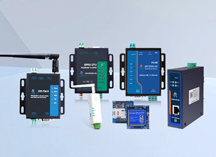
The connection is straightforward. The device's Console cable (RJ45-to-RS232 crossover cable) plugs into the serial port of the server. The server's network port connects to an existing switch or router. For power, the PUSR USR-TCP232-410s supports a wide DC input of 5–36 V and can also use a standard DC power adapter. Installation options include wall mounting or DIN-rail mounting, depending on the deployment location.
One thing to confirm is serial interface matching. Console ports use RS232, so the serial device server must provide an RS232 interface. The USR-TCP232-410s offers both RS232 and RS485 serial ports, with the RS232 port dedicated for Console connections. The USR-TCP232-302 is a single-port RS232 model — if the scenario only requires connecting one device's Console port, this is sufficient.
After connecting to the network, the core configuration items for a serial device server are three: IP address, communication mode, and port number.
IP addressshould be set to a static address in the same subnet as the local network. Avoid DHCP assignments that could cause the IP to change, making the device unreachable later. The USR-TCP232-302 series includes a device search tool that scans the LAN for default IPs, useful when the device address is unknown.
Communication modedetermines the role of the serial device server on the TCP/IP network. For Console management, TCP Server mode is the most commonly used option. The serial device server listens on a fixed port (e.g., 4001), and the management PC initiates a TCP connection to that IP and port. Once connected, a terminal application (PuTTY, TeraTerm, SecureCRT) running on the PC can interact with the device Console port through this TCP channel.
When multiple administrators need to manage the same network device simultaneously, some serial device servers support multiple TCP connections. The USR-TCP232-302 supports multiple client access, allowing several engineers to connect to the same Console channel at once. For single-operator scenarios, this concurrency is not required.
Port numberis the TCP entry point. Common port numbers for Console scenarios include 23 (the default Telnet port), 4001, and 5001. The port number can be set independently from the serial device server's web management interface port, with no conflict.
In practice, there are two ways to access a device Console port through a serial device server from the management PC:
Method 1: Virtual COM Port
Install the serial device server vendor's virtual COM driver on the management PC, and the operating system sees a local COM port (e.g., COM5). This COM port maps to the serial device server's IP and port at the software level. All COM-dependent terminal applications (including many older SCADA configuration tools) work without modification — just open the COM port and communicate with the device.
The advantage is broad compatibility; it does not require terminal software to support TCP direct connection. The disadvantage is that Windows driver stability varies by OS version. Blue screens or driver conflicts may require updating to a higher driver version or adjusting firewall settings.
Method 2: TCP Direct Connection
No virtual COM driver is installed. The terminal application connects directly to the serial device server's IP and port via TCP. In PuTTY, select "Raw" or "Telnet" mode, enter the device IP and port number, and connect. TeraTerm and SecureCRT support the same operation.
This approach is simpler, requires no extra drivers, and works cross-platform. Linux and macOS users can connect directly. The limitation is that older Windows software that only supports COM ports cannot use this method.
Both methods share the same underlying data path. The serial device server拆s TCP packets into serial bytes and sends them to the Console port; serial bytes returned by the device are packed into TCP packets and sent back to the management PC. The difference lies only in which "interface" the management PC uses to see this channel.
Console ports have no encryption mechanism, and data passed through by the serial device server is transmitted in plaintext. If accessed over a network, anyone with packet capture capability on the same LAN can read Console session content.
Security recommendations:
When choosing a serial device server for Console management, the following parameters are worth reviewing:
Below are the 8 most common questions users ask when searching for "serial to ethernet converter" and "console server" solutions.
Yes. A USB-to-Console cable converts USB signals to RS232 on the PC side, then plugs into the device Console port. A serial device server performs this conversion on the network side. The PC connects via TCP/IP only, and the serial device server handles the RS232 conversion. Benefits include no USB adapter needed, availability on PCs without spare USB ports, and the ability to communicate across subnets between the management PC and the serial device server.
Typically, one serial device server handles one Console port only. RS232 Console communication is one-to-one; connecting multiple devices to the same serial port causes data collisions. To manage multiple device Console ports, deploy multiple serial device servers, each with its own IP address. Management PCs access them through different IPs. Multi-port models like the USR-TCP232-410s provide two serial ports, allowing connections to two different Console ports on one device.
Virtual COM driver blue screens usually stem from driver–OS version incompatibility. Try updating to a higher driver version, disabling the firewall and antivirus software, and reinstalling. If the issue persists, switch to TCP direct connection, which requires no driver installation at all.
Yes. After configuring the correct default gateway on the serial device server, cross-subnet communication is possible. When the management PC and the serial device server are on different subnets, ensure routing is reachable between them.
Some serial device servers support multiple TCP connections, allowing several management PCs to connect at once. Be aware that multiple administrators typing commands simultaneously will produce interleaved output, which is useful for collaborative troubleshooting or training. For single-operator scenarios, it is advisable to restrict connections to one.
There is no fixed rule for port numbers. Common choices are 23 (the default Telnet port), 4001, and 5001. The port number only needs to be unique within the LAN and not conflict with other services. If the device's own Telnet management also uses port 23, the Console management can use a different port to avoid confusion.
Latency is determined by the network link. On a local LAN, TCP direct connection latency is typically a few to tens of milliseconds, which has no noticeable impact on Console command input. Over internet or high-latency links, command response time may increase slightly, but it remains within acceptable ranges. Console communication runs at relatively low baud rates (default 9600 or 115200 bps), with minimal bandwidth usage, so delay does not cause packet loss.
The connection drops. The serial device server acts as an intermediary in the network; when it powers off, the TCP connection closes automatically, and the management terminal software shows the connection as lost. After power is restored, the management PC must initiate a new TCP connection. The serial device server includes a watchdog mechanism with both hardware and software dual watchdogs to auto-recover the device if it hangs, ensuring long-term operational stability.